
Latest iOS Developer Beta Releases (Beta Updates)
iOS 26.4 Developer Beta Released (February 17, 2026)

iOS 26.4 Beta
Build: 23D127
Released: February 17, 2026
iPadOS 26.4 Beta
Build: 23E5207q
Released: February 17, 2026

macOS 26.4 Beta
Build: 25E5207k
Released: February 17, 2026

watchOS 26.4 Beta
Build: 23T5209m
Released: February 17, 2026

tvOS 26.4 Beta
Build: 23L5208m
Released: February 17, 2026

visionOS 26.4 Beta
Build: 23O5209m
Released: February 17, 2026
iOS 26.3 Developer Beta 3 Released (Jan 27, 2026)
iPadOS 26.3 Beta 3
Build: 23D5114d
Released: January 27, 2026
Compatibility ➡
Features ➡
macOS 26.3 Beta 3
Build: 25D5112c
Released: January 27, 2026
Compatibility ➡
Features ➡
watchOS 26.3 Beta 3
Build: 23S5611c
Released: January 27, 2026
Compatibility ➡
Features ➡
tvOS 26.3 Beta 3
Build: 23K5611c
Released: January 27, 2026
Compatibility ➡
Features ➡
visionOS 26.3 Beta 3
Build: 23N5613b
Released: January 27, 2026
Compatibility ➡
Features ➡
iOS 26.3 Developer Beta 3 was released (Released: January 27, 2026). Go →
iOS 26.4 Developer Beta 1
Description:
iOS 26.4 Developer Beta 1 is Apple’s latest test build for developers, focused on refining performance, improving system stability, and adding small but meaningful enhancements ahead of the next public release. This update mainly targets bug fixes, UI polish, and deeper optimization for newer iPhone models.
Key Features:
- Improved system performance and smoother animations
- Better battery efficiency on supported iPhones
- Minor UI refinements across Settings and Control Center
- Stability improvements for system apps
- Bug fixes from previous iOS 26.3 builds
- Developer-focused API updates and backend changes
iPadOS 26.4 Beta
Description:
iPadOS 26.4 Beta continues Apple’s push toward making iPad more powerful and stable. This version focuses on multitasking improvements, better Apple Pencil responsiveness, and overall system optimization for productivity users.
Key Features:
- Enhanced multitasking stability
- Smoother Stage Manager experience
- Apple Pencil performance improvements
- Better app compatibility and reduced crashes
- UI adjustments for large-screen iPads
- Security patches and system bug fixes
macOS 26.4 Beta
Description:
macOS 26.4 Beta delivers performance tuning and system-level refinements for Mac users. It improves app responsiveness, enhances system security, and resolves known issues from earlier macOS 26 versions.
Key Features:
- Faster app launch times
- Improved system stability
- Security enhancements and patches
- Bug fixes for system apps
- Minor visual refinements
- Updated developer frameworks
What is iOS RC Release
Apple regularly releases Release Candidate (RC) versions of iOS before the final public update. An RC build is the last testing stage, which means the software is almost ready for everyone. It is shared with developers and public beta testers to make sure performance, stability, and security are fully optimized. In most cases, the RC version becomes the same build that is later released to the public.
Recently, Apple released iOS 26.3 RC, bringing important bug fixes, system improvements, and better overall stability to prepare for the official rollout.
How to Install iOS 26.3 RC (Guide)
Follow these simple steps to install the iOS 26.3 RC update:
- Backup Your iPhone
Before installing any beta or RC update, create a backup using iCloud or a computer. - Join Apple Beta Program
Sign in with your Apple ID on the Apple Beta Software Program website and enroll your device. - Enable Beta Updates
- Open Settings
- Go to General → Software Update
- Tap Beta Updates
- Select iOS Developer Beta or Public Beta
- Open Settings
- Download and Install
- Return to Software Update
- Tap Download and Install when iOS 26.3 RC appears.
- Return to Software Update
Wait for Installation
Your iPhone will restart and complete the installation automatically.
How to Download iOS Beta?
If you’re excited to try the latest iOS beta (developer beta or public beta) on your iPhone or iPad. Apple gives early access to upcoming features through its Developer Beta and Public Beta programs. Whether you’re a developer testing your apps or just a tech enthusiast eager to explore, downloading the iOS beta version is easier than you think.
In this guide, we’ll walk you through how to safely download the beta – either by installing a beta profile or downloading the full IPSW file. You’ll learn what’s right for your device, how to avoid risks, and how to always stay ahead with the latest iOS beta updates.
iOS 26 Developer Beta 1 Features (What’s New?)
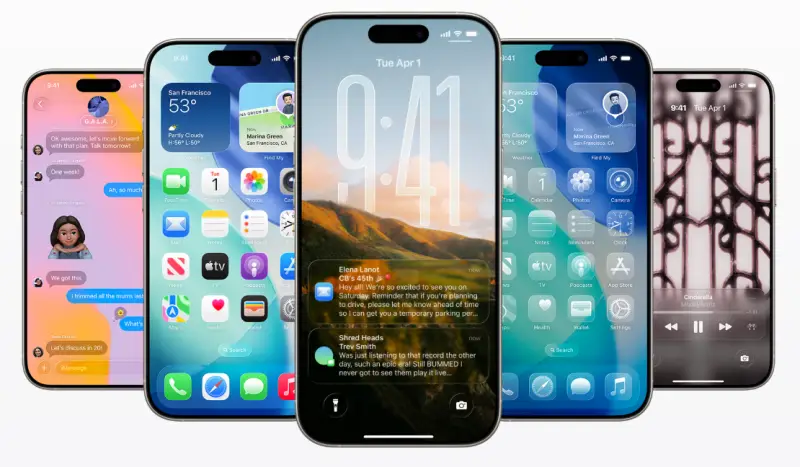
1. Liquid Glass Design
Apple gave iOS a bold visual makeover:
- Transparent, glass-like elements.
- Animated icons and smoother transitions.
- A refreshed lock screen with floating time and subtle motion.
2. Apple Intelligence
This is Apple’s new name for its built-in AI—and it’s everywhere:
- Live Translation: Real-time translation in Messages, Phone, and FaceTime—text and voice!
- Smart Screen Understanding: Tap on anything onscreen—text, images, events—and take action instantly.
- AI Suggestions: Smart replies, auto-scheduling, summaries, and more.
- Image Playground: Create custom emojis and images with prompts.
- ChatGPT Integration (built-in): Ask deeper questions or get help writing and summarizing right inside your apps.
3. Smarter Phone Calls
iPhone’s call experience just got a major upgrade:
- Hold Assist: Your iPhone stays on hold and alerts you when a real human answers.
- Call Screening: Unknown calls are screened with live transcription so you can decide whether to answer.
- Live Call Translation: Calls in different languages now translate instantly.
4. Messages Upgraded
iMessage feels more fun and more functional:
- Add custom backgrounds to individual conversations.
- Create polls in group chats.
- See typing indicators from multiple people in a group.
- Stronger spam filters and smarter auto-sorting of unknown senders.
5. Fresh Look for Built-in Apps
Several core apps got redesigned:
- Camera: Cleaner UI, better gesture control.
- Safari: Edge-to-edge layout for immersive browsing.
- Photos: Separate views for “Library” and “Collections” to make finding memories easier.
6. Apple Music Gets Smarter
- Lyrics Translation: Sing along even in other languages, with translations synced to the music.
- Pronunciation Help: Hear how translated lyrics sound.
- AutoMix: DJ-style transitions powered by AI.
7. New Games App
iOS 26 introduces a new app just for gaming:
- All your downloaded games, Apple Arcade titles, and updates in one place.
- Game progress, news, and achievements are easier to track.
8. CarPlay Improvements
- React with Tapbacks in Messages while driving.
- Live Activities in CarPlay for directions, music, and more.
- Widgets now show more info without distraction.
Bonus: Privacy & Performance
Apple says iOS 26 continues to focus on:
- On-device AI for privacy.
- Faster app launches and animations.
Better battery optimization for all supported devices.
Download iOS 26 Beta Profile (Apple Developer Beta / Public Beta)
👉 Method 1: Apple Developer Beta Download – Developers (or anyone)
Guide: Download iOS 26 Developer Beta 7 (or any Dev Beta Profile)
If you’re a registered Apple developer:
- Go to developer.apple.com.
- Sign in with your Apple ID and enroll in the Apple Developer Program (if you haven’t already).
- Navigate to Downloads and select the latest iOS Beta profile.
- Tap “Install Profile” and follow on-screen prompts.
👉 Method 2: iOS Public Beta Download – For Public Testers
Anyone can join the Apple Beta Software Program for free:
- Visit beta.apple.com.
- Sign in with your Apple ID and enroll your iPhone or iPad.
- Download the public beta profile from the Apple Beta portal.
- Allow the download, then go to Settings > General > VPN & Device Management to install it.
Download iOS Developer Beta or Public Beta Using the Settings App (No PC Needed)
Want to try the latest iOS beta without connecting to a computer? Whether you’re a developer, public tester or tech fan, you can easily download and install the iOS beta profile directly from your iPhone using the Settings app. No cables, no hassle — just a few taps.
This method works great for iPhones and iPads and is the safest way to get Apple’s official beta versions.
✅ What You Need to Know:
- No computer required – works fully from your device.
- Always backup your iPhone or iPad before installing beta software.
- This is the official method recommended by Apple.
- Works for iPhone, iPad, and iPod touch (if supported).
Step-by-Step Guide for Download Apple Beta Profile (NO PC)
👉 Download Developer Beta:
Important: If this is your first time, follow steps 1 to 10 in order. If not, just follow the “How to Get the New iOS Beta” section.
- Open Safari on your iPhone (If it’s your first time).
- Go to developer.apple.com.
- Sign in with your Apple ID (must be registered in the Developer Program).
- Tap “Account” > “Downloads”, then find the latest iOS Developer Beta.
- Tap “Install Profile” under the iOS beta version.
- When prompted, tap “Allow” → Profile downloaded.
- Go to Settings > General > VPN & Device Management.
- Tap the iOS Beta Software Profile, then tap Install.
- Restart your iPhone when prompted.
- Now go to Settings > General > Software Update and tap Download and Install to get the beta.
👉 Download Public Beta:
Important: If this is your first time, follow steps 1 to 9 in order. If not, just follow the “How to Get the New iOS Beta” section.
- Open Safari and visit beta.apple.com (If it’s your first time).
- Sign in with your Apple ID.
- Tap “Enroll Your Device”.
- Scroll down and tap “Download Profile”.
- Tap “Allow” when prompted.
- Open Settings > General > VPN & Device Management.
- Tap the Public iOS Beta Profile, then tap Install.
- Restart your device.
- Finally, go to Settings > General > Software Update, and tap Download and Install.
How to Get the New iOS Beta (Developer or Public) If You’ve Already Installed a Beta Profile
If you’ve previously installed an iOS Beta profile (Developer or Public), you don’t need to repeat the entire setup. Apple now allows users to easily switch between beta channels and get the latest iOS beta directly from the Settings app — no PC, no profile re-installation needed (as of iOS 16.4+).
This is the easiest way to stay updated with iOS Developer Beta, iOS Public Beta, or return to the latest public release.
✅ Step-by-Step Guide:
- Open the Settings app on your iPhone.
- Tap General.
- Tap Software Update.
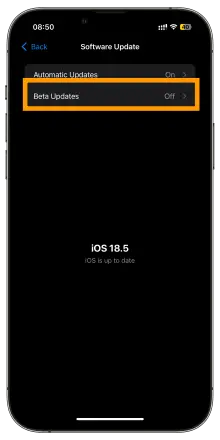
- Tap Beta Updates (this only appears if you’re signed into an Apple ID that’s enrolled in a beta program).
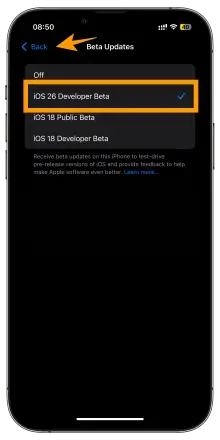
- Choose one of the following:
- iOS Developer Beta
- iOS Public Beta
- Off (to stop receiving beta updates)
- iOS Developer Beta
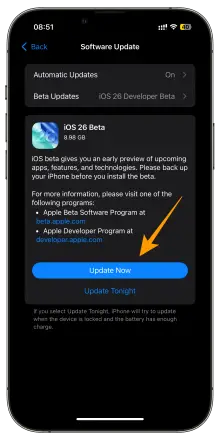
- Go back to the Software Update screen and tap Download and Install to get the latest beta version for your selection.
📌 Requirements:
- Your Apple ID must be enrolled in the Apple Developer Program (paid) or the Apple Beta Software Program (free).
- You must be running iOS 16.4 or later for this toggle option to appear.
- Make sure your device is connected to Wi-Fi and has enough battery/storage before downloading.
How to Download iOS Beta IPSW (Developer Beta/Public Beta)
Prefer a clean install or need the firmware file? The IPSW method is for you.
Developer IPSW Download:
- Go to developer.apple.com/download.
- Sign in, then scroll to the iOS Beta IPSW files.
- Choose your device model and download the matching IPSW.
- Save it to your computer (Mac or PC).
Public IPSW Download (for advanced users):
Apple doesn’t publicly list beta IPSW files for everyone, but trusted tools like 3uTools or community mirrors (use at your own risk) offer access.
✅ Tip: Always verify the iOS build number matches your device to avoid errors.
How to Install iOS Beta Using 3uTools (On PC)
Looking for a quick way to install the iOS Developer Beta or Public Beta using your computer? With 3uTools, you can easily download and install the iOS beta profile or IPSW firmware directly from your PC — no Apple Developer account required.
This method is especially helpful if you’re locked out of Settings or want more control over the installation process.
✅ Requirements:
- A Windows PC with 3uTools installed.
- A Lightning cable to connect your iPhone or iPad.
- Backup of your device (highly recommended).
- Internet connection.
Install iOS Beta Using 3uTools (iPhone or iPad):
1. Download & Install 3uTools
- Visit www.3u.com and download 3uTools.
- Install and open the software on your PC.
2. Connect Your iPhone or iPad
- Use a Lightning cable to connect your device to your PC.
- If prompted on your device, tap “Trust This Computer” and enter your passcode.
3. Access the Firmware Section
- In 3uTools, go to the “Smart Flash” tab at the top.
- Click the “Easy Flash” section to see available firmware options.
4. Download iOS Beta IPSW or Profile
- If a beta IPSW is listed, you can select it and proceed.
- If not listed:
- Manually download the iOS beta IPSW file from a trusted source or Apple Developer site.
- Click “Import” in 3uTools and add the IPSW file.
- Manually download the iOS beta IPSW file from a trusted source or Apple Developer site.
5. Install the iOS Beta
- Select the IPSW and make sure “Retain User Data” is checked (unless you want a clean install).
- Click “Flash” to begin installation.
- Wait for 3uTools to complete the process. Your device will reboot once finished.
📌 Important Notes:
- This method installs the full beta firmware — no need for separate beta profiles.
- Make sure your device is compatible with the iOS beta version.
- Back up your data with iTunes or 3uTools before flashing, in case something goes wrong.
How to Install iOS Beta Without a Developer Account
Want to try the latest iOS beta but don’t have a $99/year Apple Developer account? Good news, you can still install the iOS Public Beta for free, right from your iPhone or iPad.
No developer account, no PC required. Just follow these safe steps to get access to new iOS features early, directly from Apple’s official Public Beta Program.
✅ Requirements:
- A compatible iPhone or iPad
- Apple ID (no Developer account needed)
- Wi-Fi connection
- Optional: iCloud or iTunes backup
Install iOS Beta Without Developer Account
Step 1: Enroll in Apple’s Public Beta Program
- Open Safari and go to https://beta.apple.com
- Sign in using your Apple ID
- Tap “Enroll Your iOS Device”
Step 2: Download the iOS Public Beta Profile
- Scroll down to “Download Profile”
- Tap “Allow” when the system asks for permission
- A message will confirm the profile is downloaded
Step 3: Install the Beta Profile
- Open Settings > General > VPN & Device Management
- Tap the iOS 18 Public Beta Profile
- Tap Install, enter your passcode, and Restart your device
Step 4: Install the iOS Beta Update
- After restarting, go to Settings > General > Software Update
- You’ll see the latest iOS Public Beta available
- Tap Download and Install
That’s it! You’re Now Running the iOS Public Beta
- No developer account needed
- Official and safe via Apple’s Beta Program
Latest iOS 26 Beta Compatibility (iOS 26 Developer Beta 1)
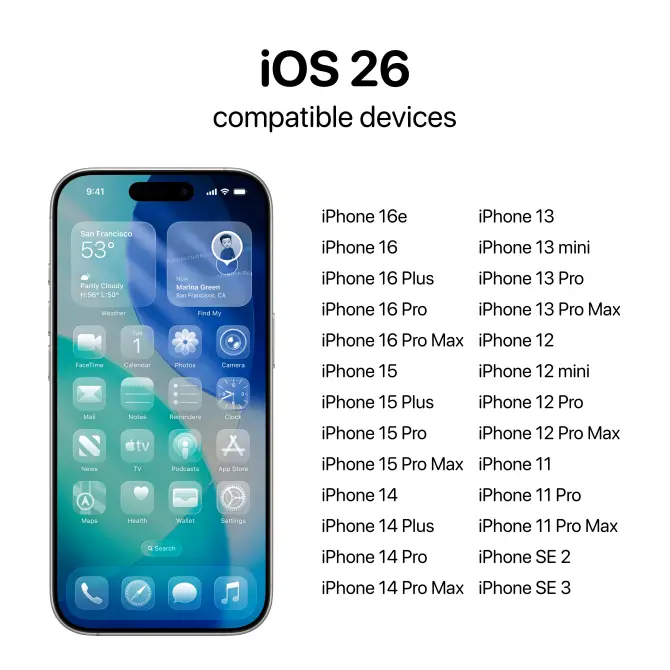
iOS 26 Beta 1 Support iPhone List:
iPhone 16 Pro Max, iPhone 16 Pro, iPhone 16 Plus, iPhone 16, iPhone 16e, iPhone 15 Pro Max, iPhone 15 Pro, iPhone 15 Plus, iPhone 15, iPhone 14 Pro Max, iPhone 14 Pro, iPhone 14 Plus, iPhone 14, iPhone SE (3rd generation), iPhone 13 Pro Max, iPhone 13 Pro, iPhone 13, iPhone 13 mini, iPhone 12 Pro Max, iPhone 12 Pro, iPhone 12, iPhone 12 mini, iPhone SE (2nd generation), iPhone 11 Pro Max, iPhone 11 Pro, iPhone 11
iOS 26 Beta 1 Support iPad List:
iPad Pro (7th generation), iPad Air (7th generation), iPad (11th generation), iPad Mini (7th generation), iPad Pro (6th generation), iPad Air (6th generation), iPad (10th generation), iPad Mini (6th generation), iPad (9th generation), iPad Air (5th generation), iPad Pro (5th generation), iPad (8th generation), iPad Air (4th generation), iPad Pro (4th generation), iPad (7th generation)
Previous iOS Beta Releases – History & Timeline
Want to explore the history of iOS beta versions? Whether you’re a developer, tester, or enthusiast, keeping track of previous iOS Developer Beta and Public Beta updates helps you understand Apple’s release pattern and version evolution.
Below is a curated list of the most recent iOS beta releases, including build numbers and release dates — for both iOS Developer Beta and Public Beta.
This section is frequently updated to reflect the latest activity in the Apple beta cycle.
iOS 18.5 Developer Beta Releases (Timeline)
| Version | Type | Build Number | Release Date |
| iOS 18.5 Beta 4 | Developer Beta | 22E5353b | April 28, 2025 |
| iOS 18.5 Beta 3 | Developer Beta | 22E5341d | April 21, 2025 |
| iOS 18.5 Beta 2 | Developer Beta | 22E5320c | April 14, 2025 |
| iOS 18.5 Beta 1 | Developer Beta | 22E5300f | April 2, 2025 |